In order to perform this operation, it is necessary to have a device with internet access and the EUDI Wallet app installed, such as a smartphone.
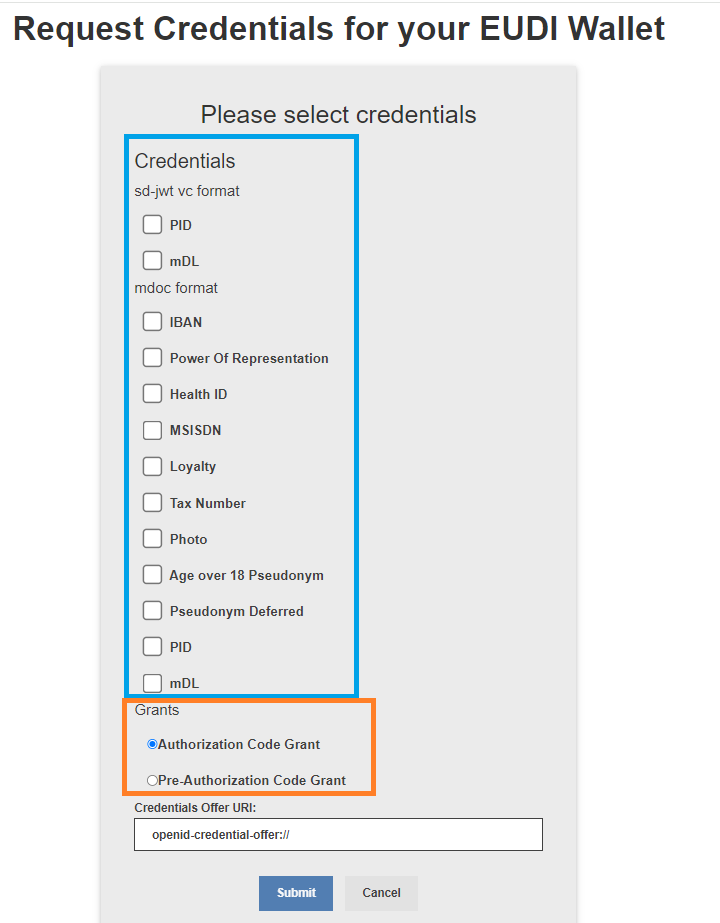
This is the first page where the user can choose which credentials they want to issue.
On this first page, you can observe 3 sets of distinct items:
The different credentials: Certificate of Residence (MSO Mdoc), EHIC (MSO Mdoc), Employee ID (MSO Mdoc), etc..
And finally, 2 types of Grants: Authorization Code Grant, Pre-Authorization Code Grant.
First Page
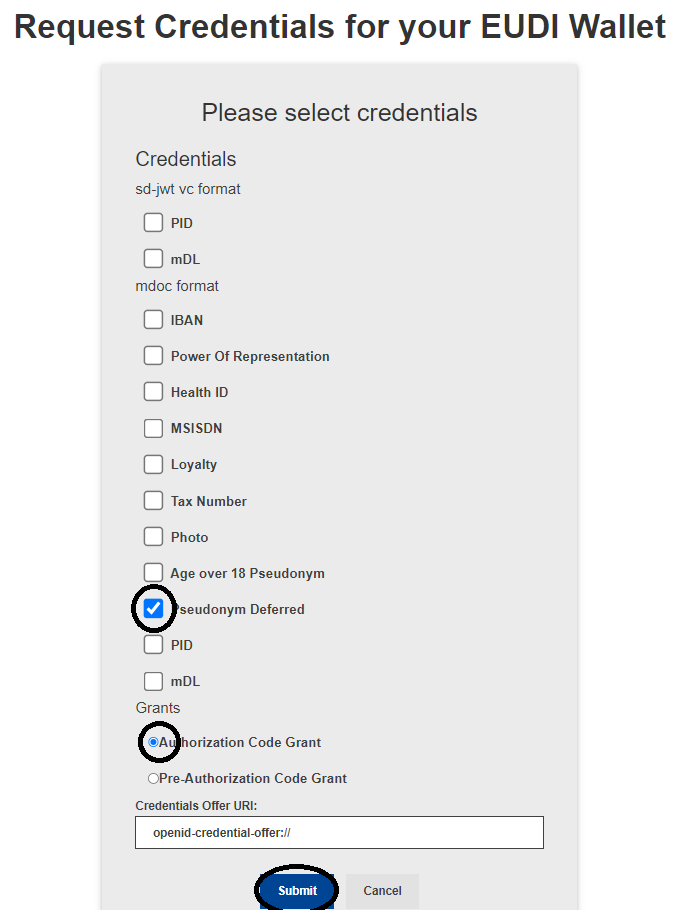
To get started, simply select the option "PID (MSO Mdoc Deferred)".
By default, the selected option in the Grant will be the Authorization Code Grant, however, in this case, any of the Grants can be used.
Finally, just click the "Submit" button to proceed.
Step 1: Select the credentials you want to issue.
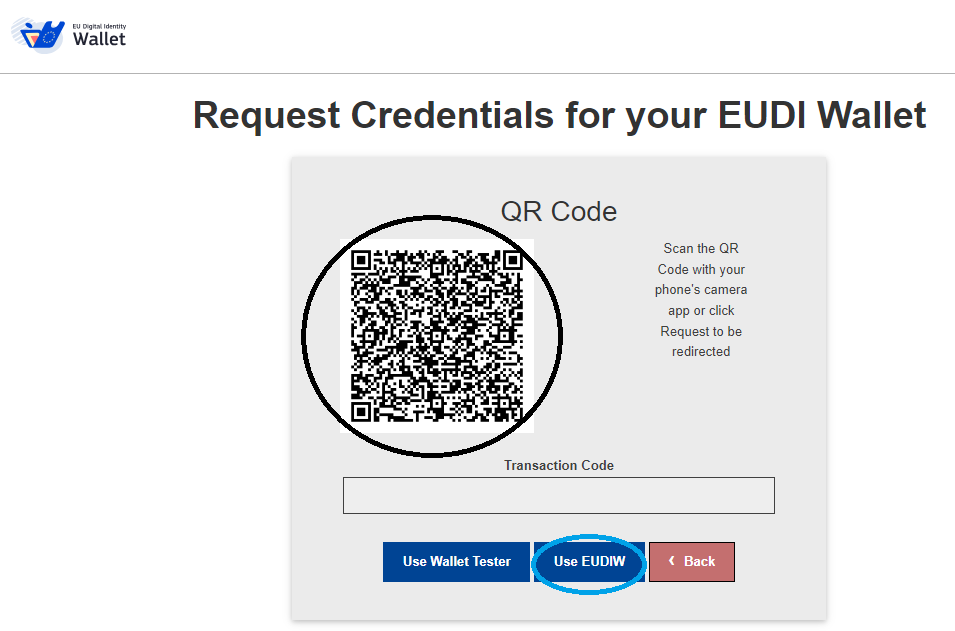
A QR code will now be generated.
If you are already using a device with the EUDI Wallet app, there is no need to scan the QR code. Simply press the "Use EUDIW" button, and you will be redirected directly to the app.
If you are not on a device with the EUDI Wallet app, such as a computer, you will need to scan the QR code with a device that has internet access and the EUDI Wallet app. After scanning, you will be redirected to the app.
Step 2: QR Code Scanning
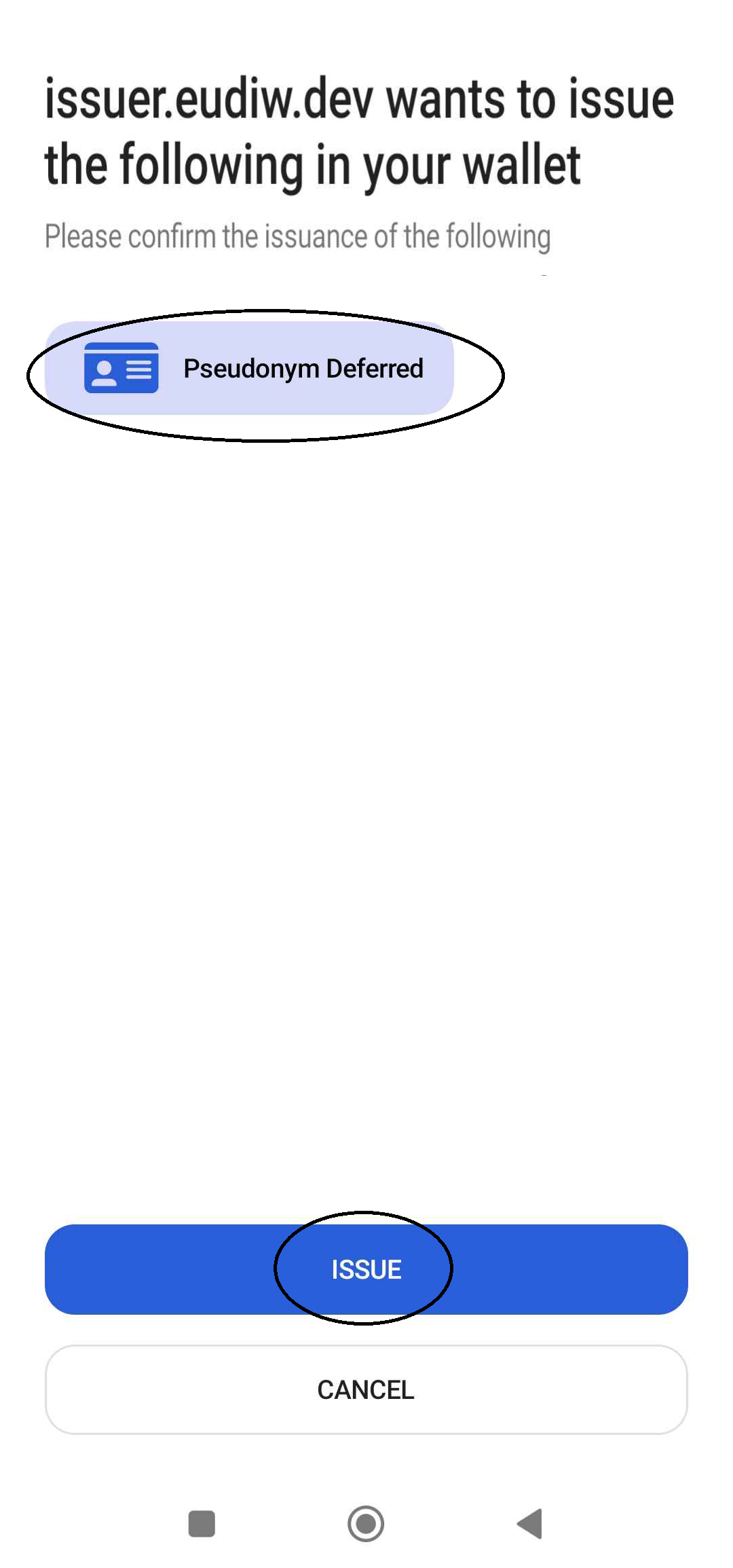
After being redirected to the EUDI Wallet app, you will see what will be issued to your wallet. In this case, only "PID (MSO Mdoc Deferred)" will appear.
To continue, simply press "Add".
Step 3: Confirmation in EUDI Wallet
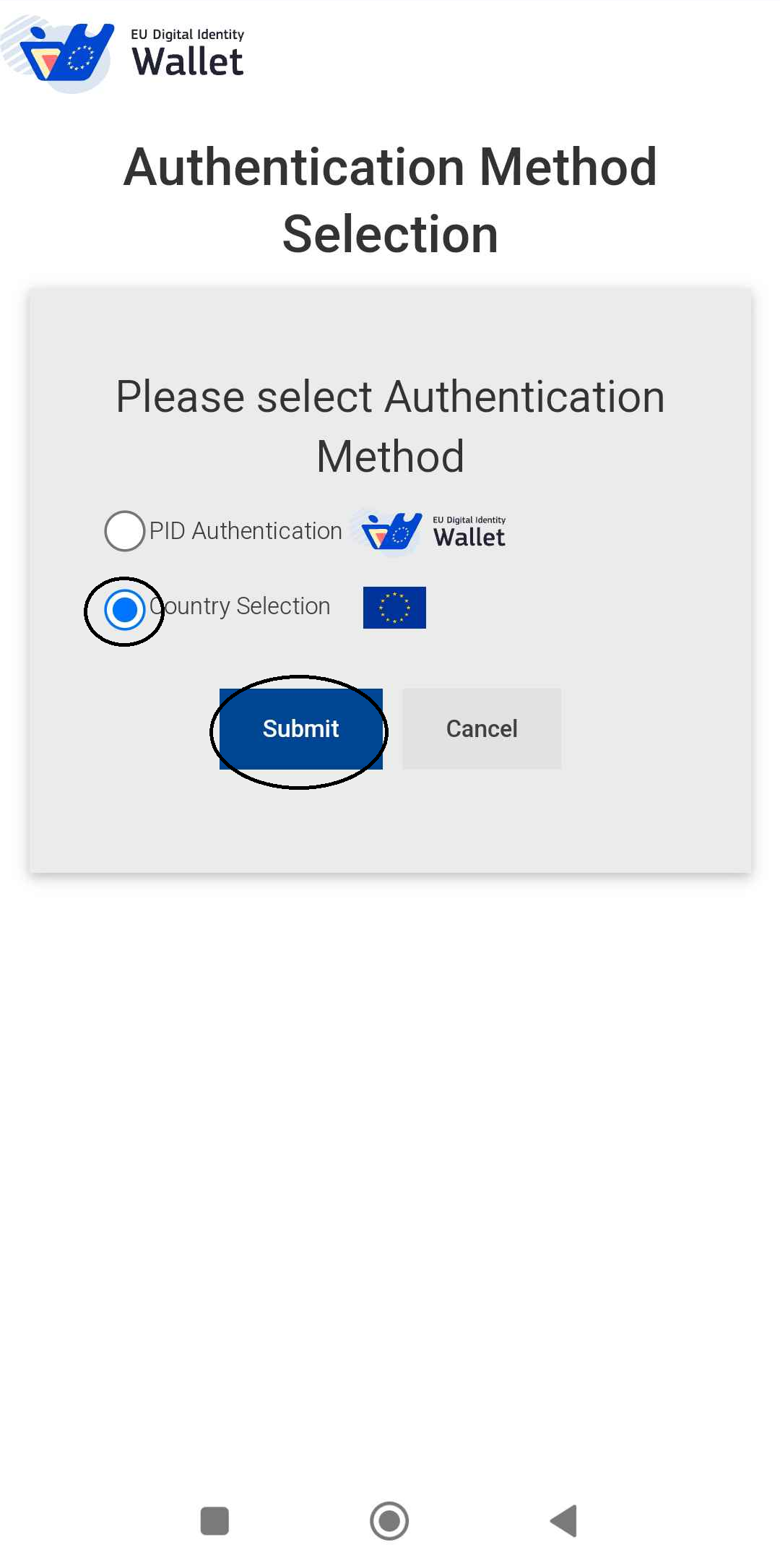
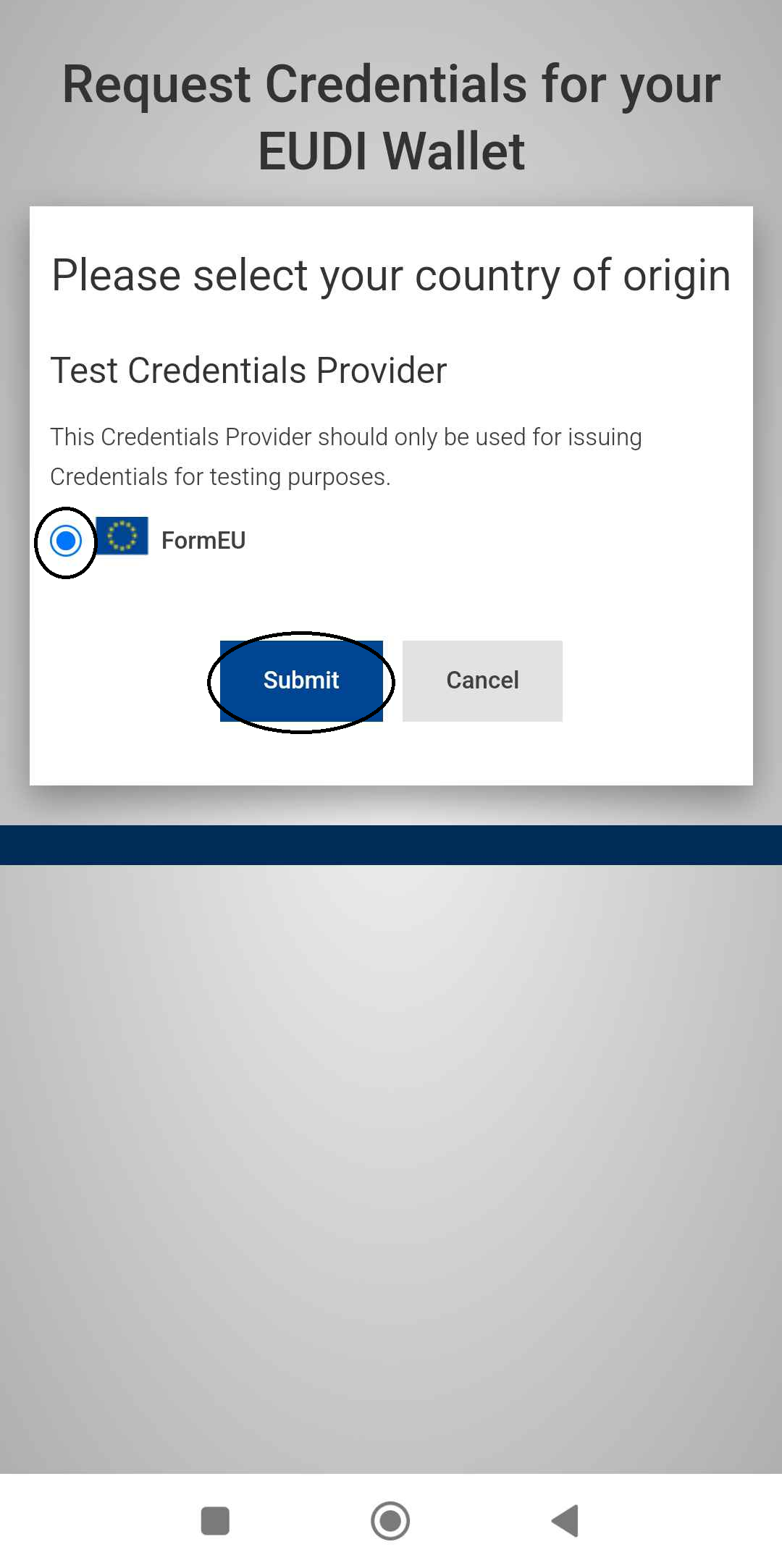
You will now need to choose the country provider of your credentials. For demonstration purposes, the "FormEU" option will be used.
To proceed, after selecting the country, click the "Submit" button.
Note: Keep in mind that if you select the "FormEU" option, none of the data entered is verified or validated. Therefore, when issuing credentials to your wallet using this option, the data will not be valid and cannot be used as such. No data entered will be saved.
Step 4: Select the country of origin
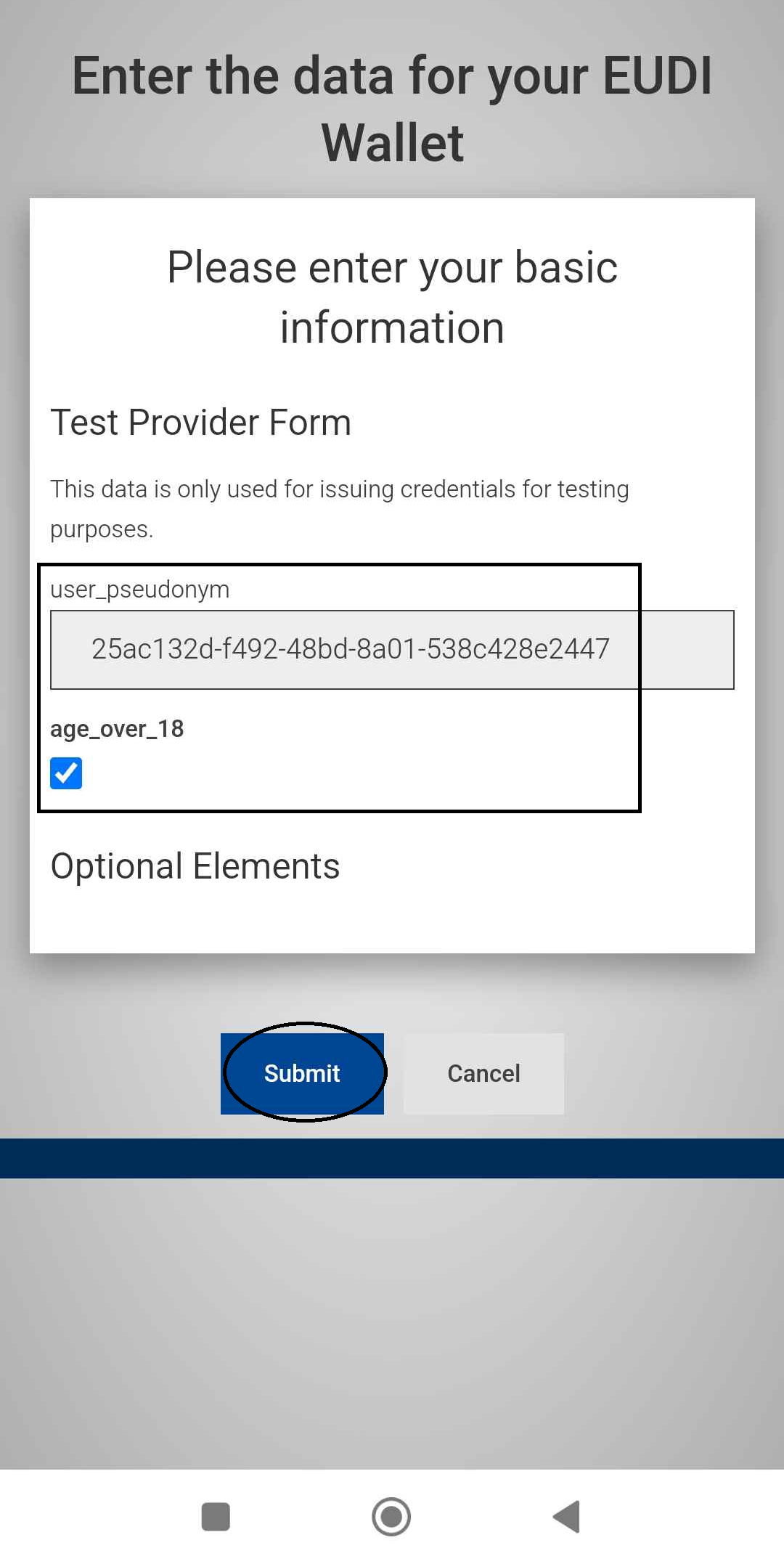
You will need to enter the data manually.
After entering all the required information (birth date, family name, given name, nationality and place of birth), click the "Confirm" button to proceed.
Note: Keep in mind that if you select the "FormEU" option, none of the data entered is verified or validated. Therefore, when issuing credentials to your wallet using this option, the data will not be valid and cannot be used as such. No data entered will be saved.
Step 5: Enter Basic information
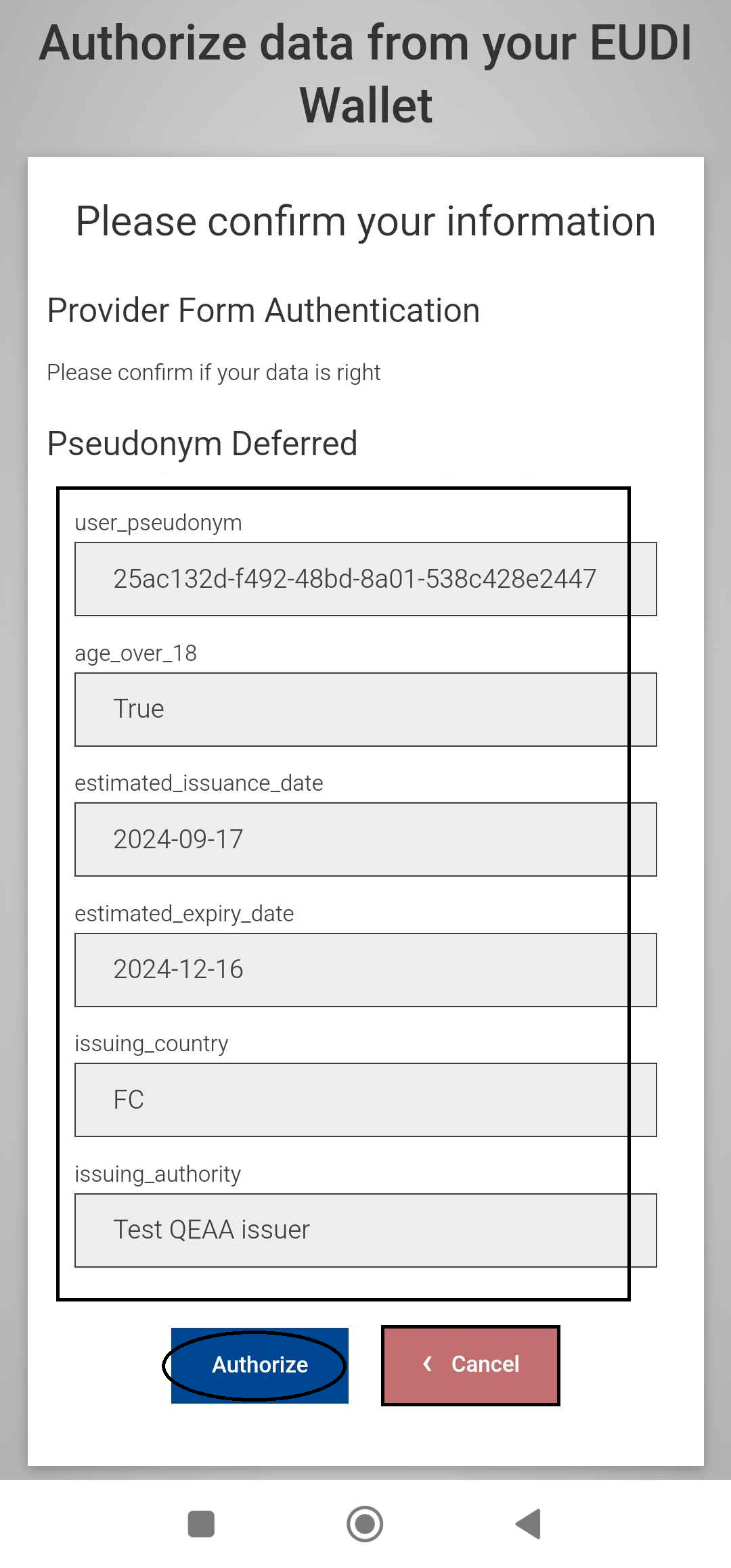
Here, you can review the information you entered in the previous form to verify and confirm the data.
If everything is correct, click the "Authorize" button.
Step 6: Confirmation of the entered information
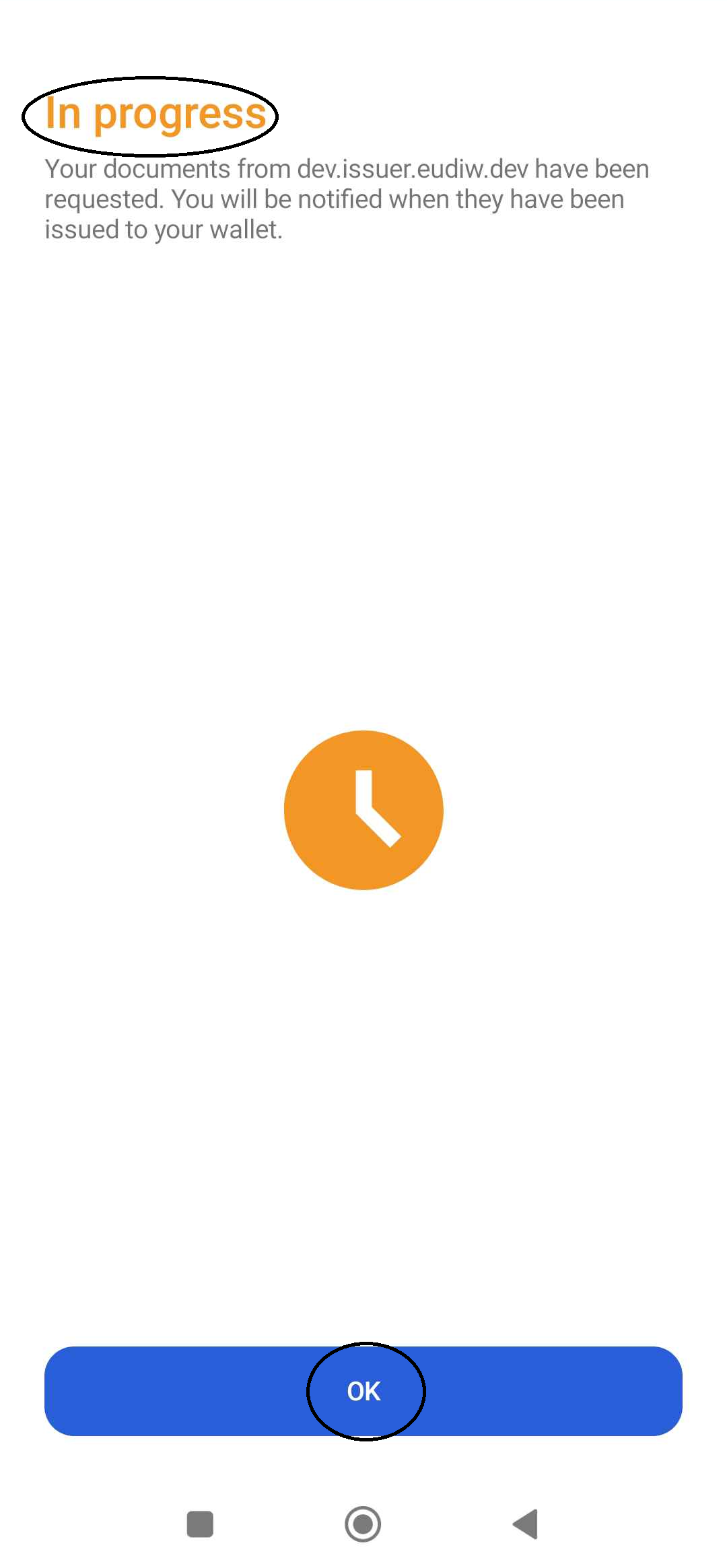
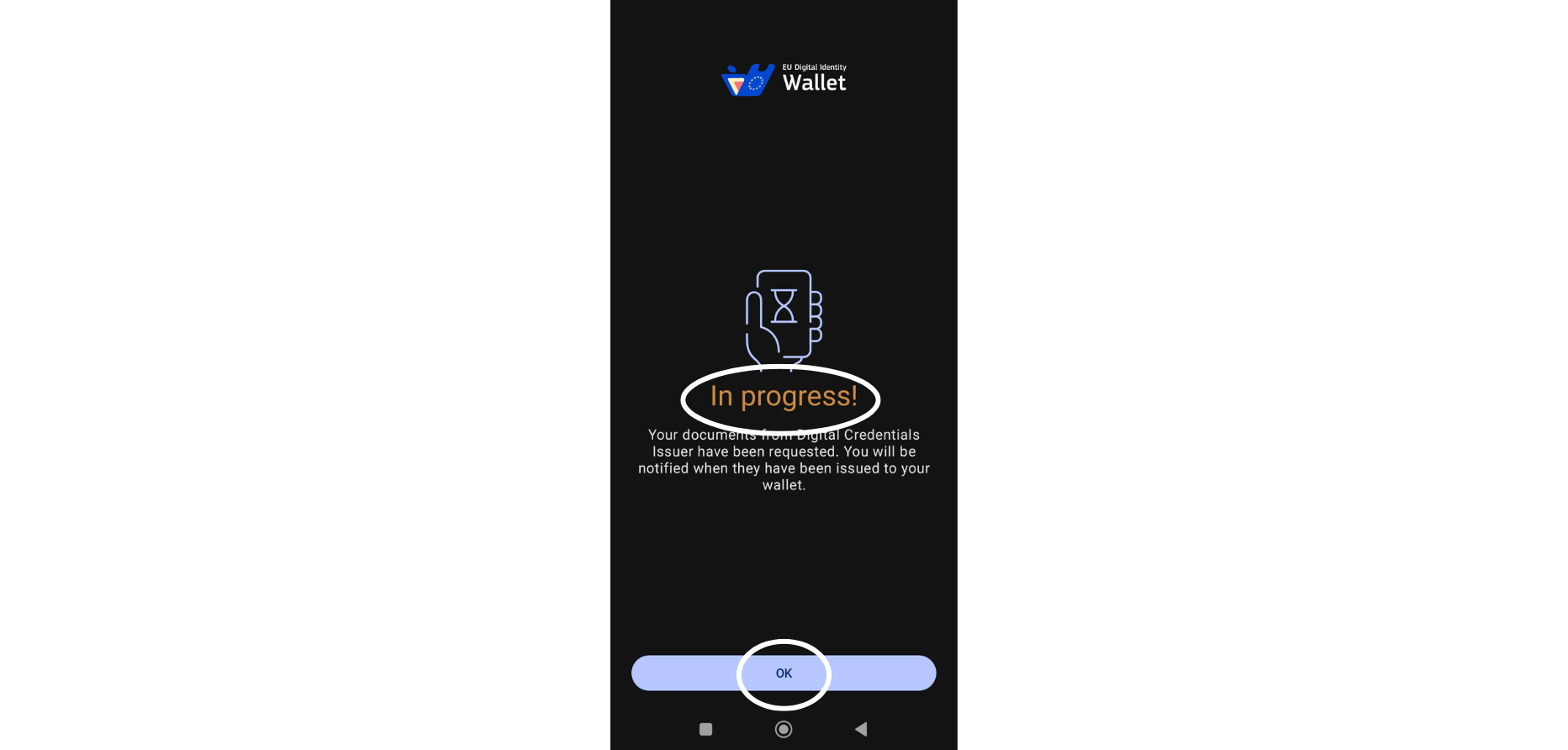
If everything is correct and goes smoothly, you will see a page indicating "In progress".
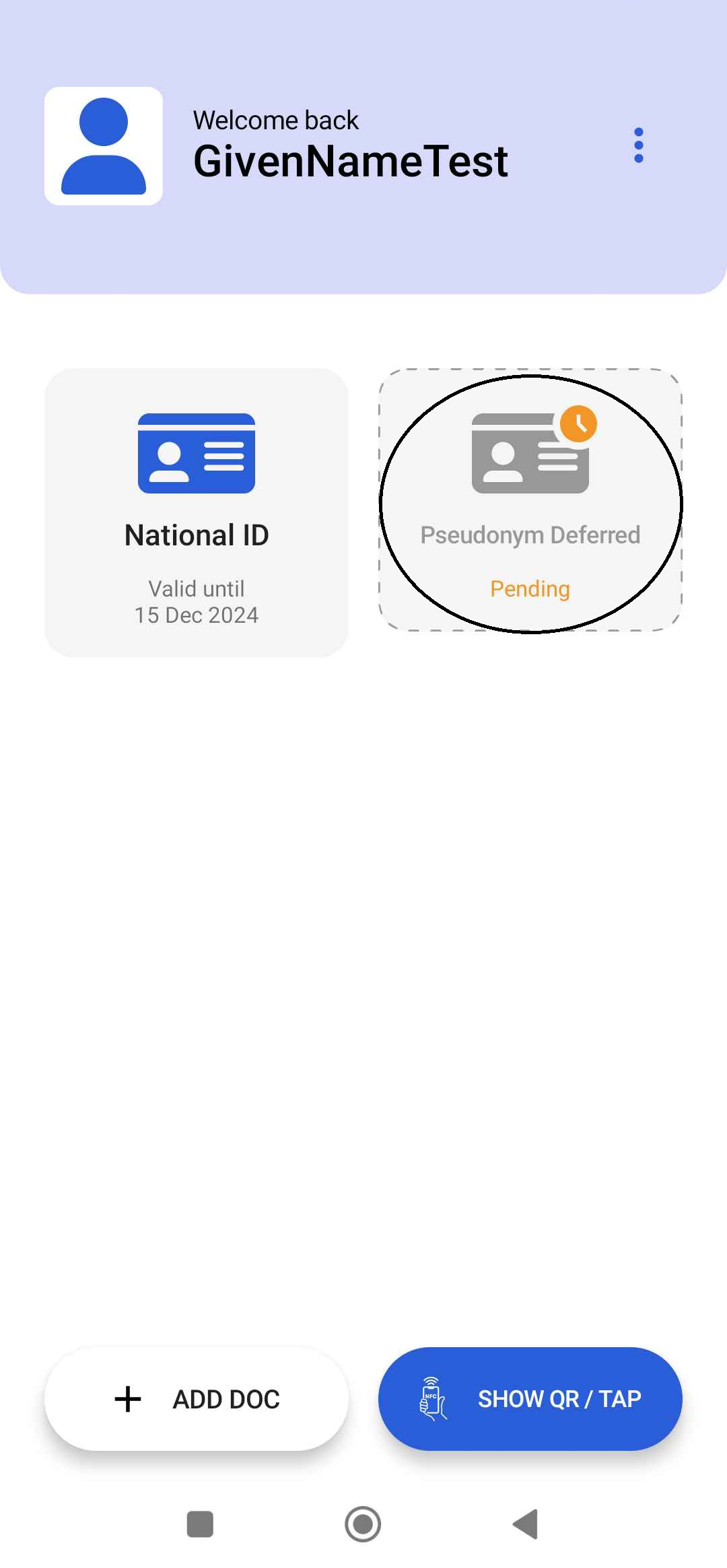
At this point, you will have issued the selected credentials to your wallet, but it is still in a 'pending' state, and once it is ready, it will be issued to the wallet..
To finish, simply click the "OK" button.
Step 7: Pending in issuance
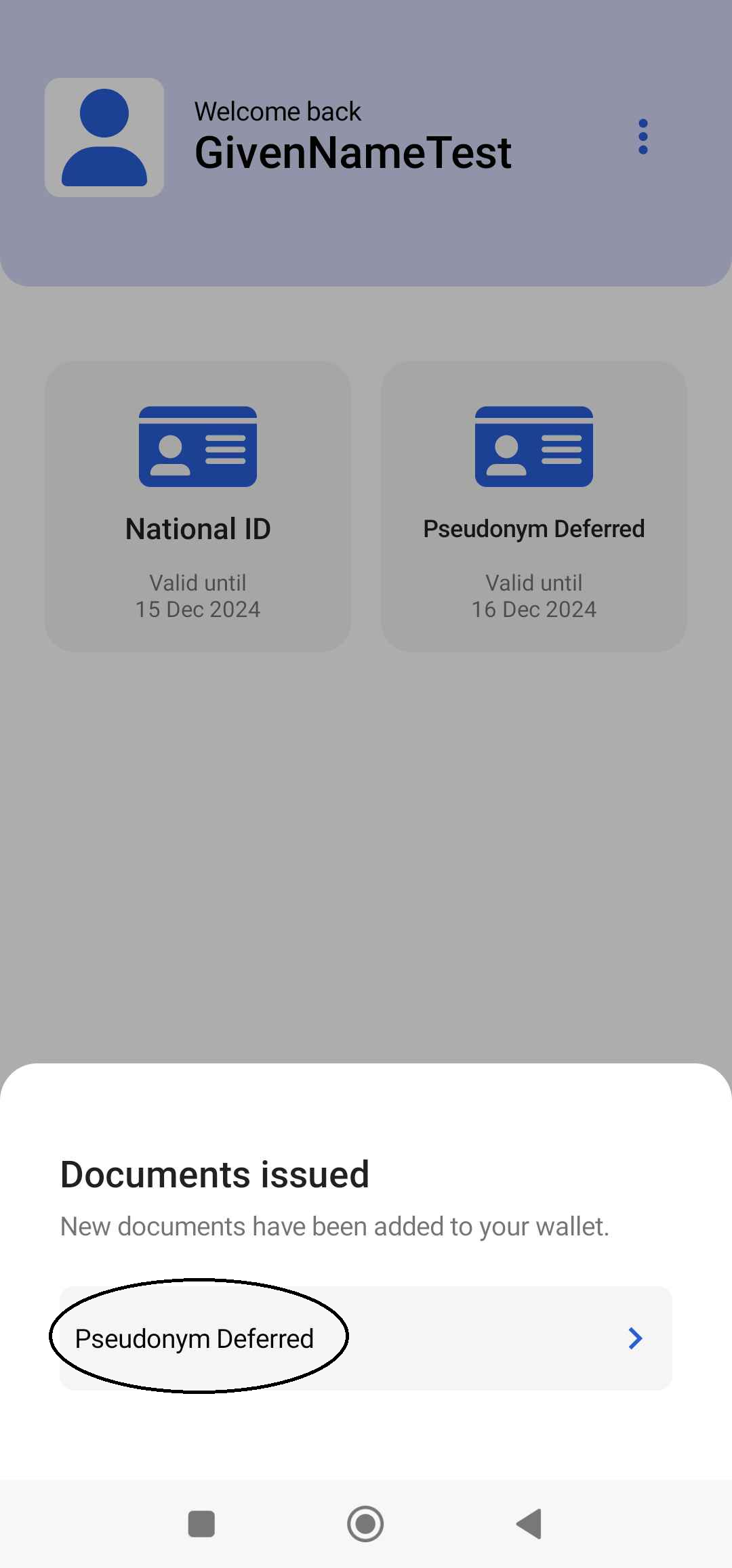
After a while, the application will show that the documents previously in pending status have been issued.
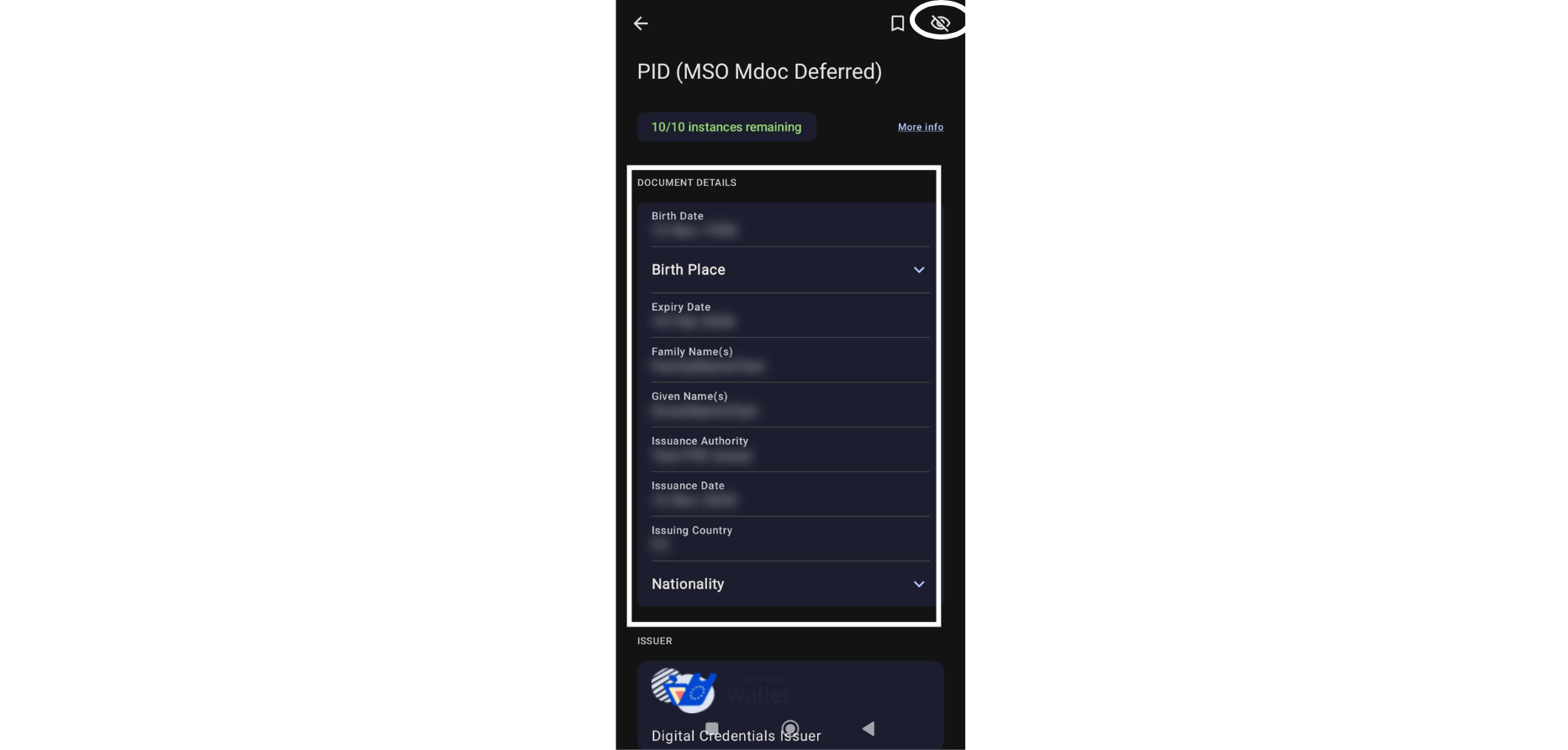
To see more information about them, simply click on 'PID (MSO Mdoc Deferred)'.
Step 8: Documents issued
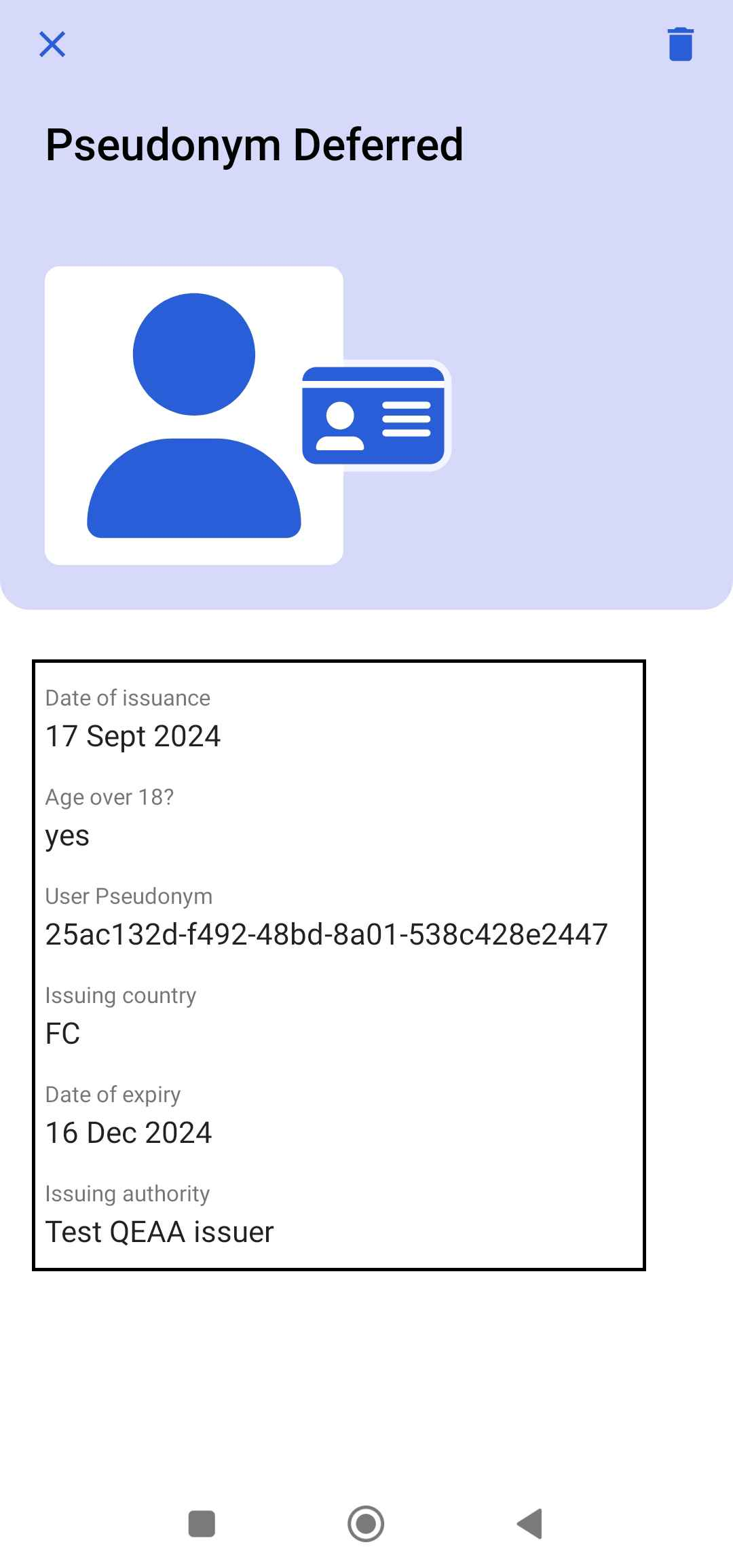
By selecting it, you can access more information about the data contained in it.